The Crew KODI addon is a third party addon for KODI that delivers a ton of high quality links. Not only movies and tv shows but in my opinion the best part is the IPTV / Live TV section with live tv channels all over the world! But The Crew has even more content like 4K UHD movies, Stand Up Comedy, Kids, Sports Live and Sports On Demand, Fitness Video and a lot more! For all these reasons and also because of it’s stability is considered one of the best KODI addons of 2019! The Crew also supports Premiumizeor Real-Debrid as well as a Traktaccount too.
Legal Copyright Disclaimer
This technology shall only be used to stream movies or TV shows that fall under the public domain. Dimitrology.com does not endorse or promote illegal activity tied to streaming or downloading copyrighted works. The end-user shall be solely responsible for media accessed through any service or app referenced on this Website. Dimitrology.com does not host referenced applications/addons and this guide is for educational purposes only.
From the top left select the Add-on Package Installer (Open Package Icon)
Now select Install from zip file
And now locate and choose crew
Next click on repository.thecrew-0.0.1.zip
Wait for the Repository to download and for the notifications that the “Repo is Installed”
Then click Install from repository
And select The Crew
Go into Video Add-ons
Select The Crew
And lastly click on Install
On KODI 18 a pop-up will inform you of all the additional add-ons that need to be installed simply click on OK
Boom Shakalaka Baby, The CREW KODI addon is now installed on your system!
The Crew Password Private Adult Section
In order to access the adult section of the Crew KODI add-on you will need to enter a password. The current password is “lol” without the “” of course.
Is This KODI Addon Safe?
Yes, this Kodi add-on is perfectly safe, but to unlock its full potential and protect your privacy, a VPN is a must—especially with third-party plugins where ISPs often block or throttle streams. Protect your digital footprint with IPVanish. While it’s a premium, paid service, it is worth every penny for its top-tier connection speeds, massive global server network, and absolute commitment to keeping no user logs or activity records.
Want More KODI Builds?
If you are looking to install more KODI Builds, I highly recommend you visit the Builds section of our website. You will find a lot of different Builds for KODI for any taste! And if you are just looking for a KODI Adult Add-on Pack, make sure to check the Dimitrology Addon Pack, it contains the best KODI add-ons available! More on KODI or great Premium IPTV solutions also available here.
https://dimitrology.com/wp-content/uploads/2019/08/The-Crew-KODI-Addon.jpg13833407Dimitrologyhttps://dimitrology.com/wp-content/uploads/2019/11/WEBSITE-LOGO-2020-SMALL.pngDimitrology2019-08-14 17:40:192020-11-02 21:08:50How To Install The Crew KODI Addon
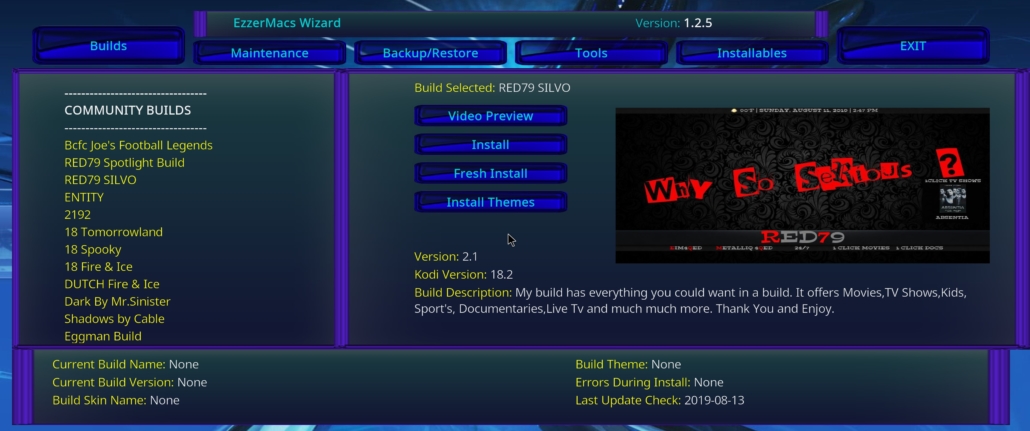
The RED79 KODI Build comes with 185MB of pure awesomeness! It is a super complete Build for KODI 18.3 Leia and serves the whole family with entertainment, news and education. Great selection for any Movie and TV Shows fan it has an unbelievable amount of working sections. And great especially for the USA sports fans with very good sports events or general sports streams. Kids are also an essential element of the build with great selections as well. And also delivers music, news, weather news and alerts, plus more! Overall, a great and complete family build that will satisfy any member of the family.
How to Install RED79 Silvo KODI Build on Kodi 18.3
Open Kodi
Select the System Settings icon on the upper left corner
Now select File Manager
And choose Add Source
Then click on None
Now enter http://ezzer-mac.com/repo/ and select OK
Leave the repo name as is and click on OK
Go back to your Home Screen
Now select Add-ons from the menu on the left
Select Add-on Installer (open package icon)
And choose Install from zip file
Then select repo
Now click on repository.ezzermacswizard.zip
Wait for the Add-on enabled notification
Select Install from Repository
Find and select EzzerMacs Wizard Repository
Click on Program add-ons
And select EzzerMac Wizard (attention: not EzzerMacs)
Select Install
Wait for Add-on installed notification
When you see a pop-up just click on Dismiss
If a new window pops-up select Click Here
Now go back on Addons
Select Programs
Select EzzerMac Wizard
Now click on Builds
From the left select RED79 SILVO
And while that is selected choose Fresh Install from the right
Wait for the wizard in order to download and extract the files
And Boom Shakalaka Baby, the RED79 SILVO KODI Build is now installed on your system!
If you have questions, need support or even requests, contact RED79 on Twitter. Other than making great builds, he is also an amazing guy!
RED79 Silvo KODI Build Video Showcase
https://youtu.be/yq3f1h-fcZU
Want More KODI Builds?
If you are looking to install more KODI Builds, I highly recommend you visit the Builds section of our website. You will find a lot of different Builds for KODI for any taste! And if you are just looking for a KODI Adult Add-on Pack, make sure to check the Dimitrology Addon Pack, it contains the best KODI add-ons available! More on KODI or great Premium IPTV solutions also available here.
https://dimitrology.com/wp-content/uploads/2019/08/RED79-KODI-BUILD-SPORTS.jpg13773434Dimitrologyhttps://dimitrology.com/wp-content/uploads/2019/11/WEBSITE-LOGO-2020-SMALL.pngDimitrology2019-08-13 12:16:362019-08-13 16:53:51How To Install The RED79 Silvo KODI Build on KODI 18.3
In this easy to follow tutorial you can find the step-by-step guide in order to install the TechStreams Fork Add-on on KODI. If you are already familiar with the Destiny Add-on on KODI, this is no news for you. But for the rest of people, this is an amazing addon that is a fork of the Destiny add-on providing some of the best content you can get from a video add-on on KODI. In fact it delivers Movies, TV Shows, Kids, Live Sports and Live TV / IPTV.
What Is Good With TechStreams Fork KODI Add-on
Unlike most of the other add-ons the TechStreams Fork not only provides links to streams from all over the web but it uses a Real Debrid account in order to stream torrent sources as a stream. That means that you are not actually downloading anything from a Torrent tracker but instead you use the secure connection of Debrid to stream videos from their server. Other than that, you can also make use of the Live Sports and Live TV section which is great as well.
Not To Be Confused With The TechStreams Free For All Add-on
In a previous post we talked about another great add-on by the same team, the ManCave Tech that has a similar name and content. The TechStreams Free For All add-on is a totally different add-on that offers content with a totally different way. So make sure to not confuse them and also try them both in order to select which you prefer most.
How To Install TechStreams Fork KODI Add-on
On the top left corner select the System Settings icon
The click File Manager
Now on the left select Add Source
And then where it says NONE
Now enter the URL: http://mcteam.tech/repo/ and click OK
Click down below the free entry and name it Man Cave and click OK
And now once again OK
Go back to the main menu and select Add-ons
Now select the Add-on Package Installer icon one the top left
Select Install from zip file
From the new screen locate Man Cave and choose it
Select the repository.mancave-4.0.4.zip (or newer version)
Wait for the pop up notification that the “Man Cave Repo Installed”
Click Install from repository
And then click Man Cave Repo
Now Video Add-ons
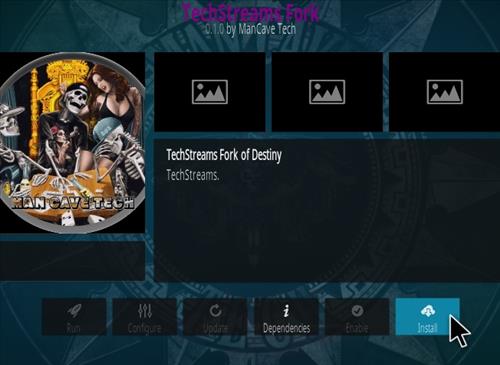
And scroll down until you find TechStreams Fork and select it
Lastly select Install
On Kodi 18.3 Leia a box will popup showing all the dependencies and add-ons that will be install, simply select OK.
Boom Shakalaka Baby, the TechStreams Fork Add-on for KODI has been successfully installed on your system!
Voodoo is a Kodi add-on from Hellhound located in the Ezzer Mac Repository. It is an all-in-one add-on offering Movies, TV Shows, Kids, Adult Channels and even a Wizard for cleaning the cache. It’s best section perhaps, the Ghost-IPTV section, brings an auto-generated list with various IPTV channels for free. So overall it is an excellent KODI add-on.
How To Install Voodoo Add-on on KODI 18.3 Leia
At the top left click the System Settings icon
Now click File Manager
On the left click Add Source
Click where it says NONE
Type in the URL: http://ezzer-mac.com/repo
In the next box down name it Ezzermacs and click OK
Double check everything is correct and click OK
Go back to the main menu and click Add-ons
Select the Add-on Package Installer Icon at the top left
Click Install from zip file
A box will pop open select Ezzermacs
Now click repository.EzzerMacsWizard.zip
Wait for the Repository to download and install, a popup will notify you
Click Install from repository
Click EzzerMacs Wizard
Video Add-ons
Click Voodoo
Click Install
Now on the popup that shows all the dependencies and add-ons that will be install just click OK
Boom Shakalaka Baby, you have successfully installed the Voodoo Add-on on KODI!
Two months have passed since our last bugfix release and already we have a new one ready for consumption. Fancy a few more features? There aren’t any, with one teeny-tiny exception. Apparently DTS-HD audio only tracks are a thing and Kodi can now play them like any other music format. That’s it. No more features. Seriously.
However, since Kodi 18.3 is a bugfix release, we have a boatload of erm… fixes. In fact, too many to mention. Below is a non-exhaustive list of (mostly) usability fixes.
Estuary
Fixed favourites widget not scrolling properly on 16:10 displays
Fixed API button was not reachable with a mouse on Settings window
Fixed Skin Settings window scrollbar focus
Fixed order of TV Show title and Episode title in Video Info dialog
Added Search button to the side menu in the Video and Music windows
Fixed Wall and Infowall views scroll to bottom on certain aspect-ratios
Fixed broken side menu navigation in the Addon Browser window
PVR
Fixed a Group Manager crash when adding a new group
Fixed EPG UI corruption and/or EPG data not showing with newly added channels
Fixed PVR guide window channel data being overwritten
Music
Added support for DTS-HD audio tracks
Fixed wrong album or artist thumb art being picked from scraper results
The remaining fixes are under the hood and range from addressing nasty memory leaks to DVD playback from HTTPS sources, with a couple of crash and burn events in between. A special thanks to all the users that found a bug, took the time to report it and, in some cases, provided a fix.
The full v18.3 changelog can be found in our GitHub milestone. If you want to read back on what was actually changed in v18 itself, you can find the corresponding articles in the blog posts – Kodi 18, Kodi 18.1 and Kodi 18.2.
As usual, Kodi 18.3 availability on Google Play and Microsoft Store may take a few more days. Stay tuned.
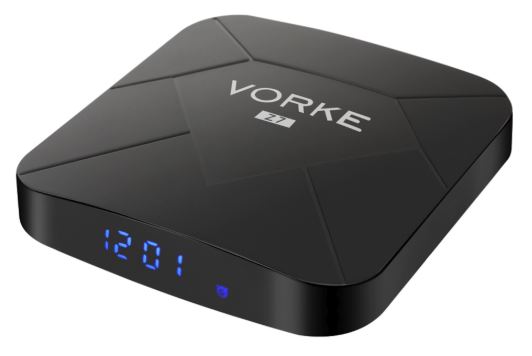
The brand-new Android 9 TV Boxes from Vorke, the Vorke Z7 is on a sale over at Geekbuying and with an exclusive coupon you can lower the price even more! Both devices are identical, the only difference stands for the internal storage. On the “smaller” model you get 32GB of internal storage, on the “bigger” brother 64GB. With the coupon ETPEHQHF you can get the VORKE Z7 4GB/32GB for just $39.99 and by using the coupon WDAUPYER you can get the VORKE Z7 4GB/64GB for just $42.99. Both incredibly low offers and future-proof!
Since the only difference relies on the internal storage of the two models, let’s check out the rest of the hardware specs:
The VORKE Z7 is powered by Android 9.0 Pie, the latest Operating System from Google on Android devices! This will guarantee a long-lasting support of your favorite apps on Android since this OS version is the latest you could get on any Android device, let alone the fact that most TV Boxes haven’t received an update to this version yet and others will never get.
Driven by an Allwinner H6 CPU (4 x Cortex A53 architecture), a CPU we have already seen on other devices that had great performance on benchmarks and real life results and a Mali-T720 GPU for great graphic support can handle any multimedia operation. Video streaming with apps like Plex, KODI, IPTV and more or even some Android gaming. Also with 4GB of RAM, multitasking is great so you can run multiple applications on the background while using another. Common example: a VPN running while updating apps from Google Playstore and watching your favorite movie.
In order to offer a very competitive price of the VORKE Z7, they also had to do some cuts. The downside of this device is the 100M LAN (instead of the maximum of 1000M) and the lack of a Dual Band WiFi (it only supports 2.4G on 802.11 b/g/n wireless standard ). While this may be a turn-off for some, I’m sure a lot of people will not mind since not everyone has a greater than 100M connection and quite frankly, 100M is still a huge amount of bandwidth for any usage: gaming, streaming, iptv, etc.
For the rest you get the best out there: HDMI 2.0, AV out, Optical out on the back and on the side we find the micro card slot, USB2.0, USB3.0. It will cover all your other needs for connectivity and storage expansion.
Seren on Kodi is a brand new video addon from Nixgates (the developer of Incursion KODI Addon). In particular is a video add-on that plays movies, tv shows and documentaries. Also introduces some new, cool features too. But this add-on DOES NOT work without Premiumizeor Real-Debrid. So if you do not have one, don’t install Seren on KODI but select another addon like Scrubs v2 or Exodus Redux. Also the “Smart Play Settings” (Up Next, Auto Playlist Creation, Auto Episode Resume, and Pre-emptive Scraping) DO NOT work without an authorized Traktaccount too.
How Does Seren For KODI Work?
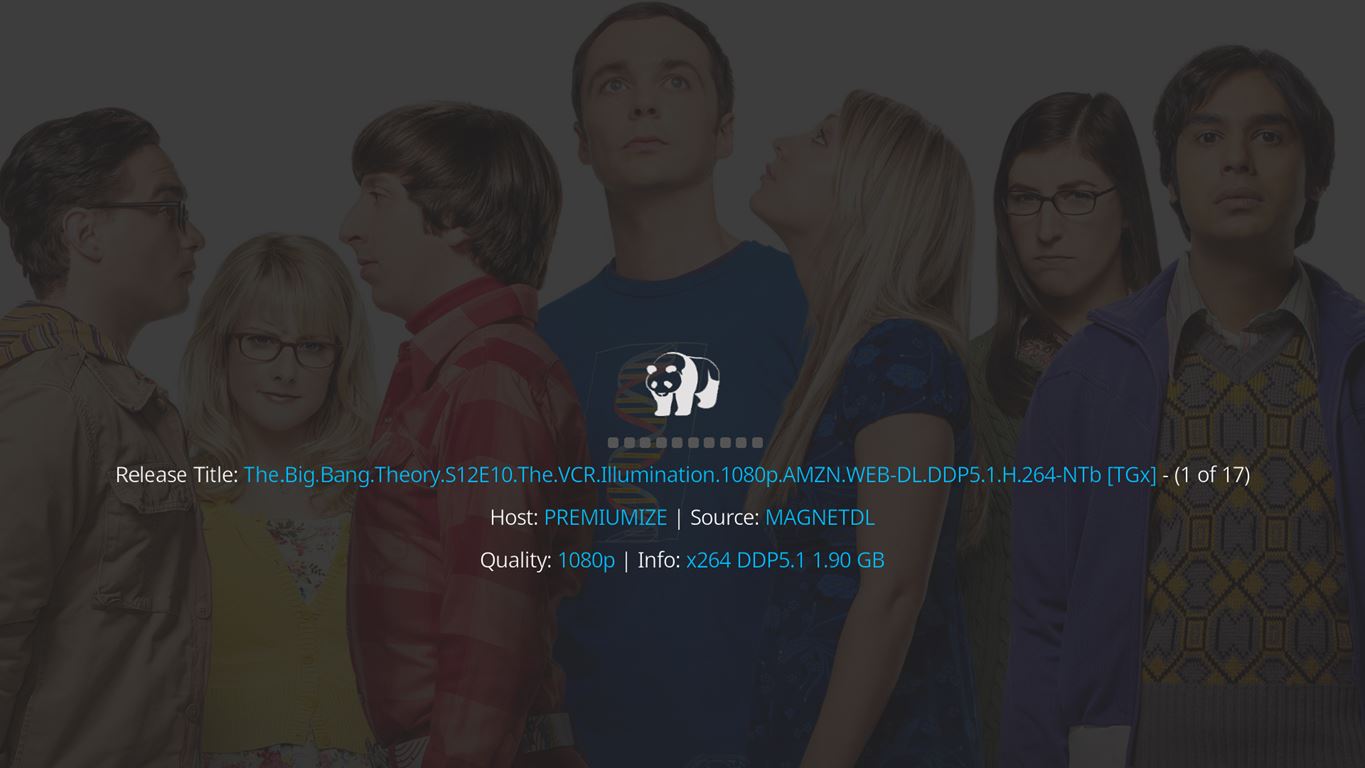
Unlike other KODI addons, Seren also uses torrents to play titles. So it is extremely fast and efficient. But do not fear the word “torrents”. When you use it with a Debrid or Premiumize account you only use cached files. This means that the torrents are already cached on a Debrid or Premiumize server. In fact you stream the video files from there as any normal video file. The result is super-fast streams, with great quality too. And not only, you get the Netflix experience with the “Up Next” function. This will enable the auto-play of continuous episodes from TV Shows and sync all your previously watched content.So you will forget about the remote control when watching your favorite series.
Is This Video Addon For KODI Safe?
Yes, it is a safe video addon for KODI. The actual torrenting is a file download, so no torrents are involved. Also the developer Nixgates has done brilliant work again in the past. But you should always use a VPNto protect your identity and security when streaming free movies and TV shows. Especially with any of the third-party Kodi addons such as this. So if you consider protecting your internet identity and demand high-quality privacy, then protect your online presence with a trusted VPN service like IP Vanish or Private Internet Access. Both are paid services but guarantee your online anonymity without keeping logs or paid records!
About This KODI Addon
This is a third party add-on so please do not post questions about this add-on in the official Kodi forums. Instead, use my step-by-step guide below. It will show you How To Install Seren Kodi Add-On. And also how to configure it on both Kodi 18 Leia and 17.6 Krypton. As a result this is a 100% working tutorial!
How To Install Seren on KODI
First, open Kodi
Then select Settings (the cog icon on the top left).
And choose File Manager
Now press Add Source
And select None
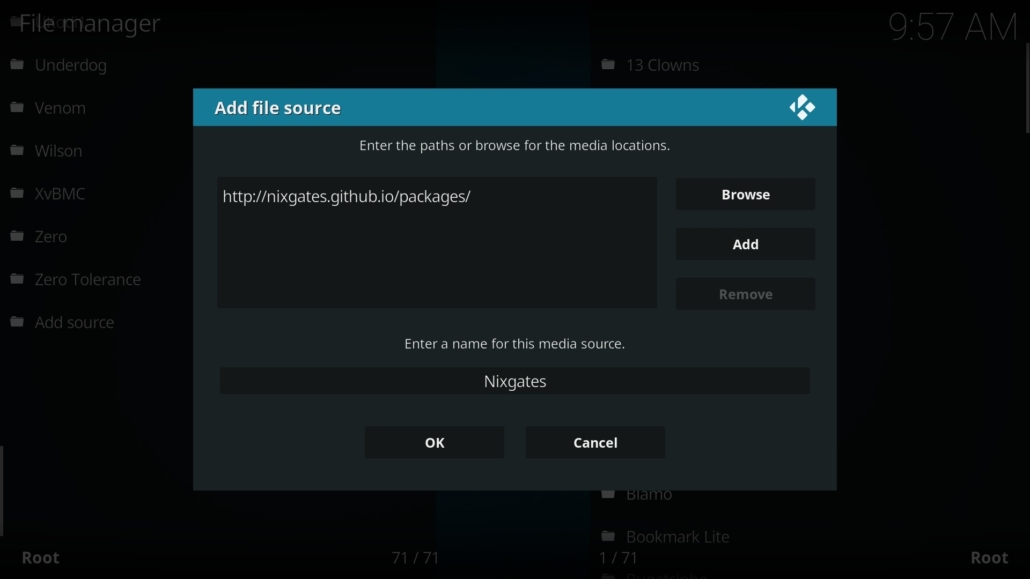
Now enter the following https://nixgates.github.io/packages and select OK.
Next select the “packages” text underneath and type in Nixgates then click OK.
Now go back to your home screen and select Add-ons from the left hand menu.
Then select Browser (the icon that looks like an open box on the top left).
Also select Install from zip file.
And choose Nixgates
Now select nixgates.repository.zip
Then wait for the Add-on enabled notification.
Next select Install from Repository
And then select Nixgates Repo
Now press Video add-ons
And select Seren
Now select Install
Wait for Add-on installed notification.
In conclusion, Seren is now installed on KODI but you need also to configure / setup the addon in order to work.
Setup / Configure Seren On KODI
Open Seren
Then select Tools
Now choose Open Settings Menu.
And select Providers, Install From Web URL.
Next, type in http://bit.ly/a4kScrapers
Then a prompt will come up asking if you’d like to install the scrapers. So press “Install“, then select OK.
Finally, select Accounts
Now in this section enable your Real Debrid or Premiumize account. So you need to authorize them also inside the Seren addon in order for the addon to work.
Next, always inside the Accounts section you can also add your Trakt authorization too. It works best if you have an account so I highly recommend using it. If you do not have a Trakt account, get one. It’s free and it syncs your library in the cloud.
Finally, Seren on Kodi is now configured so it is ready to use! In some cases you may need to exit from the addon and restart it.
Visit our always up-to-date list with the Best KODI Addons Of The Month to browse through the best, working KODI addons at the moment. This is a list that is always under constant update so only the top add-ons will be listed.
Need More Help?
If so, then leave a comment down below. Sometimes I may not reply instantly but usually there is always someone that can share his experience with you. Otherwise, I always read the comments so you will get an answer.
Reminder:
With this add-on you will need a Premiumizeor Real-Debrid account as well as a Traktaccount too. This is the only way for Seren addon to be a 100% working.
If you found this tutorial useful, then consider sharing it with your friends and/or family. It will help them too as it will help our site too. You can even use the pre-configured buttons below in order to share this article easily. Simply select the platform of your choice and click on it. Boom Shakalaka and happy streaming!
Legal Copyright Disclaimer
This technology shall only be used to stream movies or TV shows that fall under the public domain. Dimitrology.com does not endorse or promote illegal activity tied to streaming or downloading copyrighted works. The end-user shall be solely responsible for media accessed through any service or app referenced on this Website. Dimitrology.com does not host referenced applications/addons and this guide is for educational purposes only.
https://dimitrology.com/wp-content/uploads/2018/12/seren-kodi-addon.jpg7201280Dimitrologyhttps://dimitrology.com/wp-content/uploads/2019/11/WEBSITE-LOGO-2020-SMALL.pngDimitrology2018-12-19 12:44:552023-01-19 15:30:18How to Install Seren on Kodi
Great opportunity to get the brand new Android TV Mecool KM9 from Gearbest on a flash sale for just $53.99 / €47.94 / £43.09 the lowest price ever until now!
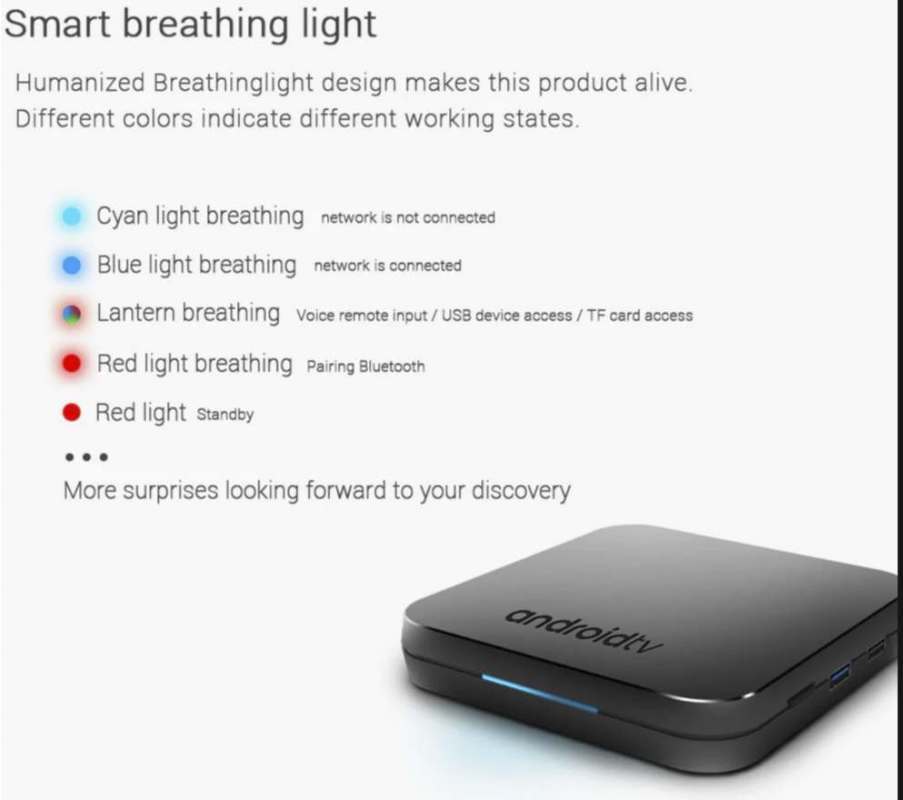
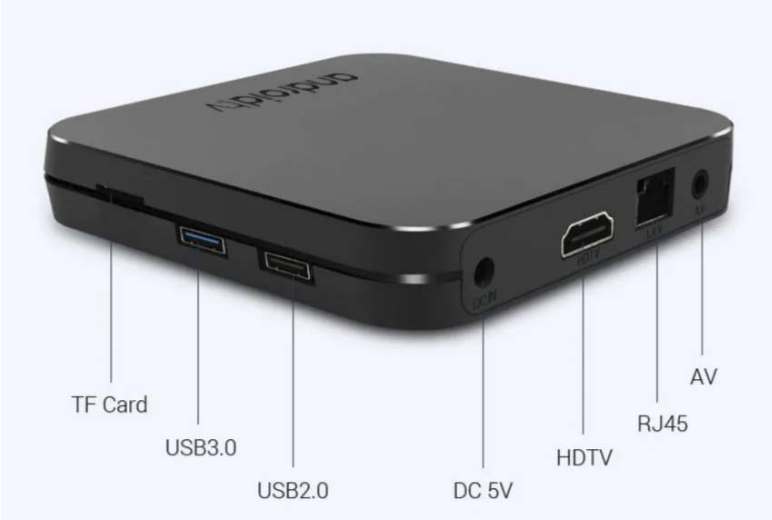
Powered by Android 8.1 TV OS, the Mecool KM9 comes with the latest version from Amlogic the S905X2 64-bit CPU, a Mali-G31 MP2 GPU, 4GB of DDR4 and 32GB of internal storage. It also comes with Dual Band WiFi, Bluetooth v4.1 and of course a remote control with which you can fully control your Android TV device. Great and exciting features as we see also on the device. Finally a good looking device and with a new LED on the front that can change color depending the state and the functions. Also great to see finally a USB 3.0 on an Android TV device, which is located on the side of the device along with another USB 2.0 and an SD Card slot. On the back of the device we find a DC-in, the HDMI output, the Ethernet 100M port and an AV out.
What is missing from the Mecool KM9 is the optical output that some people really look for but my guess is that most people nowdays will just use the HDMI as in other devices, like the NVidia Shield TV or the AV out for a soundbar.
Great video performance of this device thanks to the new CPU always very capable to 4K playback at 60fps, capable also of 4K UHD HDR, HEVC 10 Bit. But also for other Android applications is very capable, even gaming since the processor is good enough, although not at the NVidia Shield TV level, but also the 4GB DDR4 help a lot with multitasking and heavy apps. Supports the latest version of KODI 18 Leia and also the new feature with voice search inside KODI through the remote control. On the Google Play Store Android TV version you can find a lot of exciting titles, that said you can also sideload any “vanilla” Android application you want.
Overall a great device and an excellent opportunity for a future-proof device by Mecool. For more info and in order to buy it on a flash sale for just $53.99 / €47.94 / £43.09 visit the link: https://goo.gl/E1YqmF
5G WiFi: Yes
Bluetooth: Bluetooth 4.1
Power Supply: Charge Adapter
Interface: AV,DC Power Port,LAN,TF card,USB2.0,USB3.0
Language: Multi-language
HDMI Version: 2.1
Other Functions: Airplay,DLNA
HDMI Function: HDCP
Power Requirement
Power Type: External Power Adapter Mode
Power Adapter Output: 5V 2A
Battery Information
Remote Controller Battery: 2 x AAA Battery ( not included )
Dimension and Weight
Product weight: 0.1500 kg
Package weight: 0.4300 kg
Product size (L x W x H): 10.00 x 10.00 x 1.75 cm / 3.94 x 3.94 x 0.69 inches
Package size (L x W x H): 17.90 x 11.00 x 6.50 cm / 7.05 x 4.33 x 2.56 inches
Package Contents
Package Contents: 1 x TV Box, 1 x Remote Control, 1x HDMI Cable, 1 x Power Adapter, 1 x English Manual
An excellent opportunity on a coupon sale for 100 lucky persons only, since this offer is limited to just 100 devices. The Magicsee N5 Max Android 8.1 TV Box is on sale with the coupon GBCNN5MAX for just $49.99. Great price for a brand-new device that is powered by an Amlogic 64bit S905X2 CPU, ARM Dvalin MP2 GPU, 4GB of DDR4 RAM and 32GB eMMC storage.
The Magicsee N5 Max also features other great specs too. Like the Dual Band WiFi 2,4 GHz + 5 GHz, the 1000M Ethernet connection port, Bluetooth 4.1, 2 X USB (one USB 2.0 and one USB 3.0), SPDIF optical out, HDMI 2.1, AV out, SD Card Slot up to 128GB!
On the front of the device we find an LCD display which displays clock, operation and other useful information. Made of black plastic with some indentation on top and on the sides, gives a more modern look. All the main ports are on the back on the left side.
The Magicsee N5 Max Android 8.1 TV Box is also a great media player. Fully supports 4K UHD at 60 fps on KODI 17.6 Krypton and KODI 18 Leia with great results as well as it supports all the popular media players like Plex, MX player, IPTV Smart and more. And having such a performing WiFi and Ethernet connections is great for streaming and IPTV as well.
Brand: Magicsee
Model: N5 Max
Type: TV Box
GPU: ARM Dvalin MP2
System: Android 8.1
CPU: Amlogic S905X2
Core: 2.0GHz,Cortex A53,Quad Core
RAM: 4G
RAM Type: DDR4
Max. Extended Capacity: TF card up to 128GB (not included)
Media Supported
Decoder Format: H.263,H.264,H.265,HD MPEG4
Video format: 4K,H.264,H.265
Audio format: AAC,APE,DDP,FLAC,HD,MP3,OGG,TrueHD,WAV
Photo Format: BMP,GIF,HD JPEG,PNG,TIFF
Support 5.1 Surround Sound Output: Yes
Product Details
5G WiFi: Yes
Bluetooth: Bluetooth 4.1
Power Supply: Charge Adapter
Interface: AV,DC Power Port,HD,LAN,TF card,USB2.0
Antenna: No
Camera: Without
Language: Multi-language
DVD Support: No
HDMI Version: 2.1
Other Functions: 3D Games,3D Video,DLNA,ISO Files,Miracast,NTSC
External Subtitle Supported: Yes
HDMI Function: CEC,HDCP
Power Consumption.: 2W
RJ45 Port Speed: 1000Mbps
Firmware Information
System Bit: 64Bit
System Activation: Yes
Power Requirement
Power Type: External Power Adapter Mode
Battery Information
Remote Controller Battery: 2 x AAA Battery ( not included )
Dimension and Weight
Product weight: 0.2000 kg
Package weight: 0.4000 kg
Product size (L x W x H): 10.60 x 10.60 x 2.10 cm / 4.17 x 4.17 x 0.83 inches
Package size (L x W x H): 19.50 x 11.50 x 6.00 cm / 7.68 x 4.53 x 2.36 inches
Package Contents
Package Contents: 1 x TV Box, 1 x Remote Control, 1 x HDMI Cable, 1 x Power Adapter, 1 x English Manual
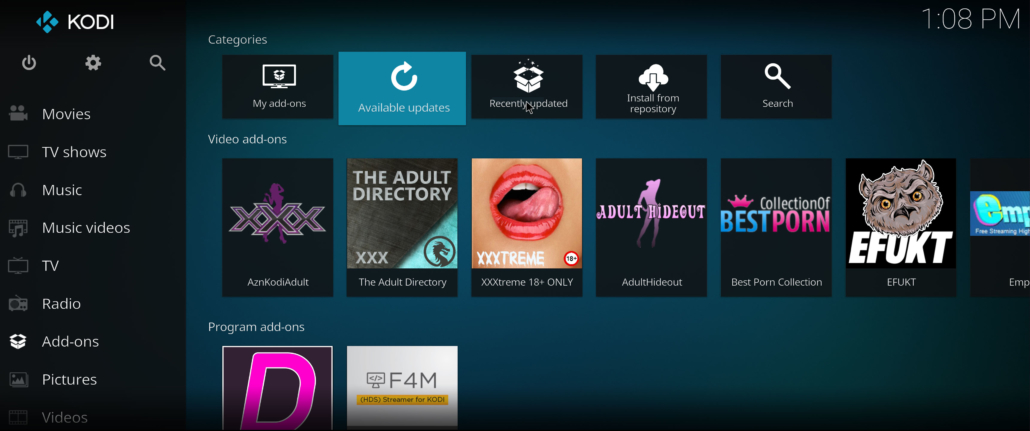
The Dimitrology TV Wizard is offering the latest KODI Adult Addon Pack. Current version is 1.7 and it is just 60MB as a zipped file. It contains 28 KODI adult addons and as ironic as it may sound, it is totally legal. This is for now the only downloadable pack from the Dimitrology TV Wizard. Make sure to select “OVERWRITE” if you are adding more content into your build so you will not delete any existing addons. In case you need to remove all previous addons that are installed inside your KODI setup, simply select the “FULL” mode of setup that will perform a Fresh Start, cleaning everything inside KODI and installing just the latest adult addons.
The KODI Adult addon pack version 1.7 is offering 27 adult addons, 26 of which are video addons and 1 picture addon. The complete list is:
KODI Adult Video Addons:
AdultHideout
AznKodiAdult
Best Porn Collection
EFUKT
Empflix
Erotik (XXX)
Fantasti.cc
GayBoysTube
Gaypornium
Hotgoo
JavStream
Just For Him
Likuoo
Lubetube (Adult)
mPorn
The Adult Directory
Tube8
Ultimate Whitecream
VideoDevil
Wood Rocket
X Videos
XnXX
XXX-O-Dus
XXXtreme 18+ ONLY
Youjizz.com
Picture Addons
Kindgirls
You can find the Dimitrology TV Wizard inside the http://dimitrology.com/repo named as plugin.video.dimitv.zip.
How to install the KODI Adult Addon Pack version 1.7:
1. On any KODI installation go under SYSTEM and select FILE MANAGER
2. Select ADD SOURCE
3. Click on NONE and enter https://dimitrology.com/repo and click on DONE
4. Select OK
5. Go to HOME
6. Select SYSTEM
7. Select ADDONS
8. Select INSTALL FROM ZIP
9. Click on repo from the list and select plugin.video.dimitv.zip
10. Wait for the notification that Dimitrology TV has been installed
11. Go to HOME
12. Select PROGRAMS
13. Open the Dimitrology TV Wizard
14. Now select SETTINGS and enter the code which you can find at https://dimitrology.com/getcode
15. Select INSTALL
16. And now select Adult Addon Pack
17. Then select OVERWRITE and wait for the installation to finish. —WITH OVERWRITE YOU WILL ADD CONTENT, IT WILL NOT ERASE ANYTHING!—
18. When asked to, select OK and the skin will reset to the default in order to enable the addons
19. If you had any skin (or Build) installed, simply go into settings, interface and select your previous skin. The addons will be not added into a menu, you can find them inside the Video Addons / Picture Addons category.
https://dimitrology.com/wp-content/uploads/2018/11/Adult-Pack.jpg8791203Dimitrologyhttps://dimitrology.com/wp-content/uploads/2019/11/WEBSITE-LOGO-2020-SMALL.pngDimitrology2018-11-29 18:02:022018-11-29 18:02:02KODI Adult Addon Pack Updated To Version 1.7