
Chromecast Remote Not Working? How to Fix the Google TV Connection Bug
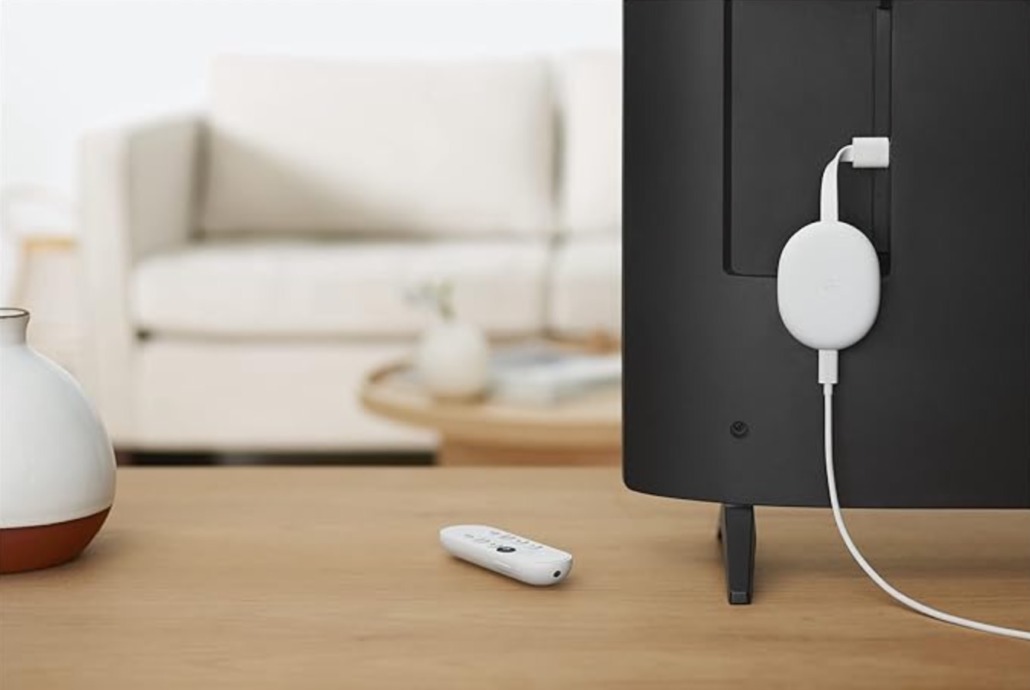
If you sat down to watch your favorite show recently only to find your Chromecast remote not working, you are definitely not alone. A growing number of Chromecast with Google TV users are reporting a frustrating issue where their physical voice remotes suddenly drop their connection and refuse to pair back up with the streaming dongle.
The bug appears to affect both the standard 4K and HD models of the device. Instead of a smooth streaming experience, users are being greeted by a stubborn setup screen asking them to pair their remote control over and over again.
What is Causing the Connection Issue?
According to user reports across various tech forums, the problem usually starts without warning. The remote control simply stops communicating with the Chromecast plug via Bluetooth.
When users try to hold down the “Back” and “Home” buttons to manually re-pair the remote, the little LED light on the bottom of the remote flashes correctly, but the on-screen pairing menu fails to complete the connection. In some instances, the screen gets stuck on a loop showing a “Searching for accessories” message.
While Google hasn’t officially detailed the exact root cause, tech communities suspect a recent background system update or a Bluetooth driver glitch is causing the hardware to temporarily forget authenticated connections.
Simple Steps to Fix a Chromecast Remote That Contentiously Fails
If your remote has disconnected, don’t throw it out just yet. Here are the most effective, verified troubleshooting steps to get your Google TV system up and running again, ordered from easiest to most thorough:
1. The Quick Soft Reset
Before diving into deep settings menus, try a simple power cycle. Unplug the power cable directly from your Chromecast dongle (the part plugged into your TV’s HDMI port). Wait a full 60 seconds, and then plug it back in. This forces the device’s Bluetooth receiver to restart and search for nearby paired devices cleanly.
2. Use the Google TV Virtual Remote
If the physical remote still won’t respond, you need a way to navigate the screen. Download the official Google Home app or the Google TV app on your Android phone or iPhone. As long as your phone is connected to the same Wi-Fi network as your TV, you can use the built-in virtual smartphone remote to control the interface seamlessly.
3. Clear the Bluetooth Device Cache
Using your phone’s virtual remote, navigate your TV screen to: Settings > Apps > See all apps > Show system apps > Bluetooth. Click on Clear cache and Clear data, then restart the Chromecast. This wipes away any corrupted connection data that might be blocking your physical remote.
4. Perform a Hard Factory Reset of the Remote
If the remote is still completely unresponsive, you can reset the physical remote’s internal memory manually:
- Remove the batteries from the back of the remote and wait 5 seconds.
- Put the batteries back in.
- While holding down the small Home button, watch the LED light.
- When the LED light starts blinking or stays solid, release the button. The remote should now be back in pairing mode and ready to sync.
Still Having Trouble?
If you try all of these steps and your remote still refuses to pair, it could be a sign of hardware failure or dead batteries. Always try a fresh pair of premium AAA batteries first. If the problem persists, you can continue using your smartphone as a permanent controller until a software patch is pushed out to resolve the glitch.


Leave a Reply
Want to join the discussion?Feel free to contribute!