
How to Install Umbrella Kodi Addon & CocoScrapers (Summer 2026 Update)
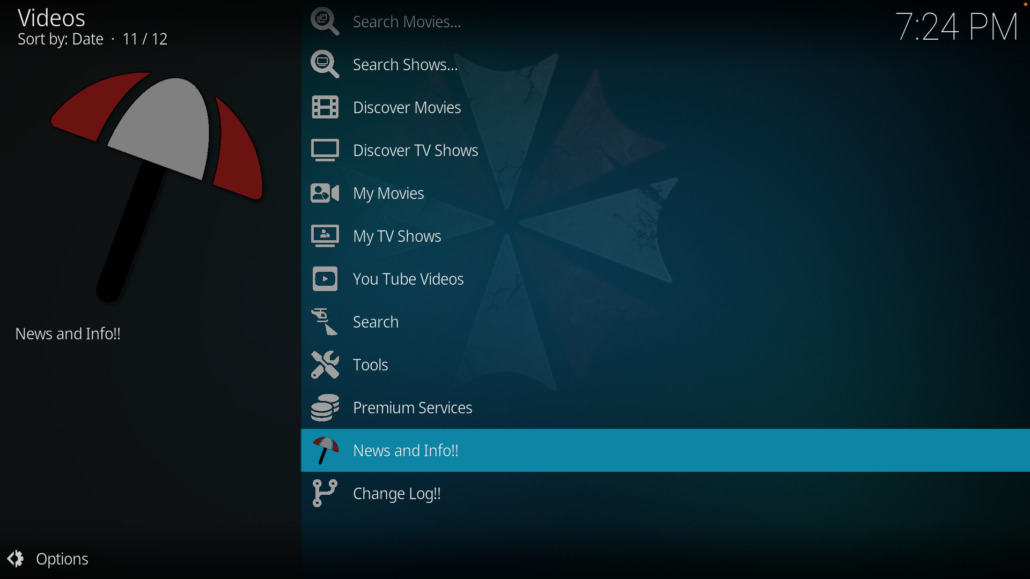
Umbrella KODI Addon
The Umbrella Kodi addon stands unchallenged as the fastest, most stable, and most dependable third-party video plugin available right now in 2026. If you want high-quality 4K streams without constant buffering, this addon is a mandatory addition to your home entertainment setup.
In this comprehensive guide, we’ll walk you through how to install the Umbrella Kodi addon on any supported media device—including Amazon FireTV, Google TV, Android TV boxes, Android mobiles, iOS, and PC—and how to correctly link the mandatory CocoScrapers external module.
📊 Umbrella Addon Quick Details
- Supported Kodi Versions: Kodi 21 Omega & Kodi 20 Nexus
- Official Repository URL:
https://umbrellaplug.github.io - Scraper Module Requirements: CocoScrapers
https://cocojoe2411.github.io - Premium Account Integration: Real-Debrid, Premiumize, AllDebrid, TorBox, Trakt.tv
Why Choose the Umbrella Kodi Addon in 2026?
Originally developed as a fork of the famous Venom addon, Umbrella has grown into a premier premium scraper fully optimized for Kodi 21 Omega and Kodi 20 Nexus. Unlike older, abandoned addons, Umbrella receives massive development support, including its major 2026 feature update enabling dynamic menu editing, TMDb v4 lists, and ultra-fast cached torrent delivery.
What makes Umbrella a top-tier choice on Dimitrology.com and across the streaming community is its advanced architecture:
- External Scraper Dependency: Umbrella relies entirely on the CocoScrapers module to fetch high-quality streaming links safely and rapidly.
- Premium Link Integration: It specializes in finding cached torrents through unrestricted premium multi-hosters including Real-Debrid, Premiumize, AllDebrid, and TorBox.
- Advanced Source Scrapers: It perfectly integrates Easynews web account access and Orion scrapers for uninterrupted, high-bandwidth streaming.
🔒 Critical Security Note: Because Umbrella is a third-party Kodi addon that fetches public torrent streams, your internet service provider (ISP) can log your activity or throttle your bandwidth. To bypass regional ISP blocks and keep your connection completely private, we strongly recommend protecting your device with IPVanish VPN. It features top-tier streaming speeds, an ironclad zero-logs policy, and absolute anonymity.
Technical Prerequisites
Before installing, ensure your Kodi configuration allows third-party installations:
- Go to Settings > System > Add-ons.
- Turn ON Unknown Sources.
- Click Yes when the warning prompt appears.

Step-by-Step: How to Install Umbrella Kodi Addon
Follow these precise steps to connect to the official repository and deploy the addon smoothly:
1.Add the Repository Source:
Launch Kodi, click the System Settings gear icon in the top-left corner, and open the File Manager. Double-click Add Source, select <None>, and input the exact official path: https://umbrellaplug.github.io/.
2.Name the Media Source:
In the input field box directly beneath the URL, name this source Umbrella and click OK. Click OK once more to close the dialogue box and save the source path.
3.Install the Repository Zip:
Return to the Kodi main menu screen and click Add-ons. Click the Package Installer icon (the open box symbol) in the upper left. Select Install from zip file and click on Umbrella.
4.Select the Latest Version:
Click on the file named repository.umbrella.X.Y.Z.zip (the letters represent the current version). Wait up to 30 seconds until you see the “Umbrella Repository Installed” message popup in the top-right corner.
5.Deploy the Video Addon:
On the same menu screen, select Install from repository. Open the Umbrella repo, enter the Video Add-ons folder, select Umbrella, and hit Install. Click OK to accept all structural dependencies.
Boom Shakalaka Baby! The Umbrella Kodi addon is officially installed on your system!
How to Install the CocoScrapers Module
Recent updates mean Umbrella no longer includes built-in scrapers. To actually retrieve movies and TV streams, you must pair it with the external CocoScrapers module. Here is how to install it in less than two minutes:
1.Add the Source Path:
From the Kodi settings panel, head back to the File Manager and select Add Source. Click <None> and enter this exact provider URL: https://cocojoe2411.github.io/. Click OK.
2.Label the Directory:
Name the media directory coco (or any name you prefer) and click OK to save the source location.
3.Pull the Repository Zip:
Return to your main Settings dashboard, click Add-ons, and choose Install from zip file. Select coco and click on the file named repository.cocoscrapers.zip.
4.Deploy the Module Pack:
Once the “Repository Installed” popup alerts you, choose Install from repository. Navigate to CocoScrapers Repository > Program Add-ons > CocoScrapers Module and click Install.
Activating CocoScrapers Inside Umbrella
With both elements installed, you need to tell Umbrella to use CocoScrapers to find links:
- Launch the Umbrella Addon from your Video Add-ons folder.
- From the main menu screen, navigate down to Tools.
- Select Settings: Providers.
- Hover your cursor over Providers Accounts and switch on Enable External Providers.
- Select External Provider: and choose CocoScrapers Module.
- You will instantly see a success confirmation banner stating: “cocoscrapers External module set successfully”.
How to Configure Real-Debrid & Trakt on Umbrella
To extract maximum performance and get true, unthrottled 4K links without buffering, you must pair Umbrella with a premium debrid account and Trakt.
Authenticating Real-Debrid or Premiumize
- Open Umbrella and navigate to Tools > My Accounts.
- Under the Debrid tab, select your preferred provider (e.g., Real-Debrid) and click (Re)Authorize My Account.
- Write down the temporary authorization code shown on your screen.
- On a phone or computer, visit
https://real-debrid.com/device, log in, and enter the code.
Setting Up Trakt.tv
To sync your movie progress and watchlists across devices, go back to the My Accounts panel, choose Trakt, click Authorize, and follow the identical browser verification process at https://trakt.tv/activate.
How to Use Umbrella to Stream Content
Now that your setup is complete and authorized, streaming content is simple:
- Go back to the main menu of the Umbrella addon and choose either Movies or TV Shows.
- Browse through categories like Trends, Popular, or use the Search feature to find a specific title.
- Select your desired title, and Umbrella will utilize CocoScrapers alongside your authorized premium hosts to gather ultra-high-speed streaming links.
- Choose a high-resolution link (such as a 4K or 1080p cached torrent file) from the generated link manager list and enjoy your content buffer-free!


Leave a Reply
Want to join the discussion?Feel free to contribute!